A product page HTML template with images, variants and sizes.
Follow the canvas sneaker example from product data to a selected colour and size. Use it as an editable frontend for your own commerce integration.
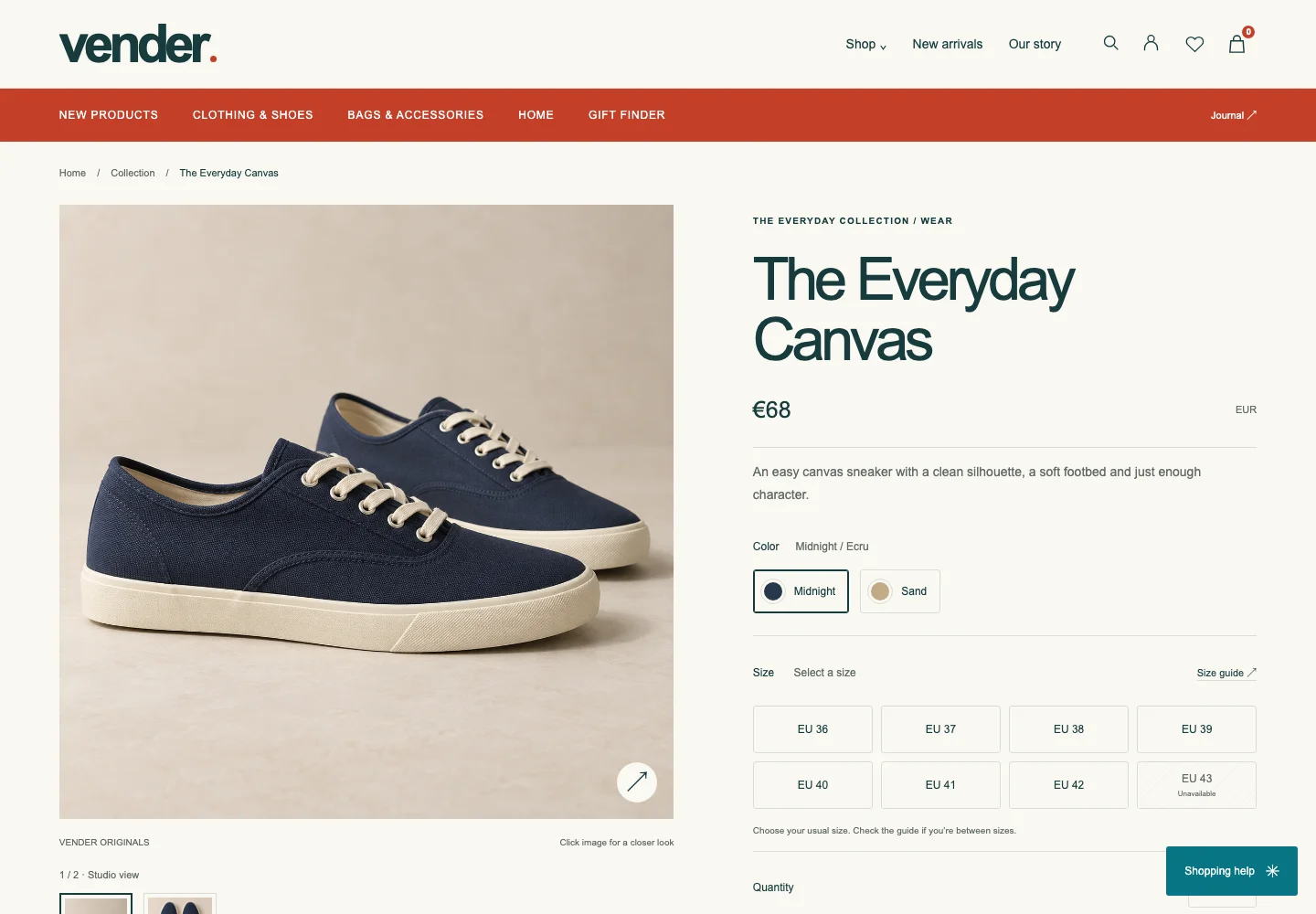
1. Start with the actual product.
Open product.html?id=canvas in the Pro demo. The initial Midnight / Ecru sneaker is €68. Switch to Sand / Ecru: the photograph changes and the price becomes €74. These are fictional fixture prices.
Product fixtures live in catalog-data.js. Keep a distinct ID for each purchasable variant so the bag can preserve which item was chosen.
2. Change the fixture without changing the contract.
The sand variant extends the original sneaker fixture. This is the corresponding definition from the source; its image name resolves to the packaged asset.
const sandCanvas = {
  ...products[0],
  id: 'canvas-sand',
  color: 'Sand / Ecru',
  price: 74,
  image: 'sneaker-sand'
};
For a first exercise, change the colour label and price in your extracted copy. Reload the product, select the updated variant and confirm the bag shows the same values. Keep the existing ID and image file until you are ready to replace the asset and its references together.
3. Preserve the selection states.
- Keep colour labels alongside swatches so the choice is understandable without colour perception.
- Choose a size before adding a sized product. The page should explain a missing selection.
- Check quantity changes and the selected variant in the bag.
- Test image enlargement and Escape-to-close using the keyboard.
- At narrow widths, confirm options fit without a horizontal page scrollbar.
The demo covers local shopping behavior. Live availability, pricing and purchasable variant IDs must come from your commerce platform.
4. Connect the next part of the journey.
Keep the shared styles, catalog data and controller ordering from the working page. Replace local fixture and bag behavior when integrating a backend; do not treat browser-calculated prices as authoritative order totals.
Continue to cart and checkout ↗ · Inspect related components ↗